Please note the following instructions are for your Cairnmillar student email account only (e.g. 12345@cairnmillar.edu.au)
If you are trying to reset your Paradigm password, please refer to these instructions instead (Reset Paradigm Password)
How to reset the password to your Cairnmillar student email account
If you have forgotten your password:
There are two options
1. *Recommended* Self-Service Password Reset (SSPR)
This process relies on you having set up your security questions prior to needing to do the password reset.
You should have been prompted to set these up on your first login or the first login after SSPR was enabled.
- Open a web browser window.
Note: if you have other Microsoft accounts, please do this in an in-private browser window such as Edge’s InPrivate or Chrome’s Incognito - Go to Office – https://office.com
- Select ‘Sign In’
- Enter your student email address and select Next
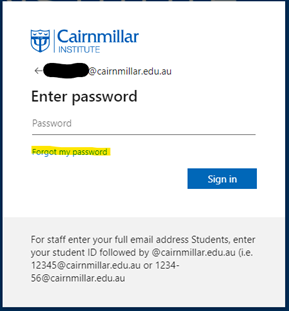
- Click the ‘Forgot My Password” link.
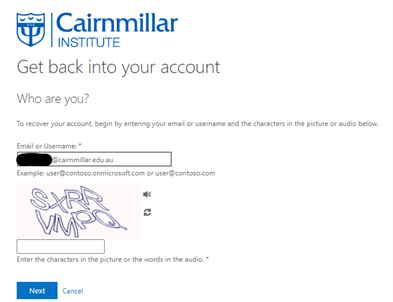
6. Make sure the email address is correct, enter the characters in the picture, then select Next.
the following is provided as an example only – yours will be different!
7. Enter the responses to the questions.
8. You will be asked for the code from your Microsoft Authenticator app.
Note that this must be the code from the record titled ‘The Cairnmillar Institute” and showing your full email address.
9. Input your new password twice. Make sure you know what it is!!
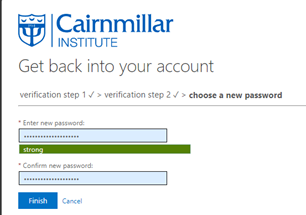
10. Select Finish
If you are unable to do the above, then you can:
2. Send an email to helpdesk@cairnmillar.org.au. from your personal email (it is assumed that if you have forgotten the password to your student email then you are unable to access it.)
In your email please include the following:
- Clearly state that you need your Cairnmillar student account password reset.
- Your full name and student number
- Your date of birth and the phone number of your emergency contact as recorded on Paradigm (so your identity can be verified).
After you have provided us with the above, IT will reset your password to a generic password so that you can access your account.
If you know your password and just want to change it:
If you know your password or we sent you a generic password and you want to change said password go to https://myaccount.microsoft.com and select the Password option.
Note that your password must be at least 14 characters long and contain at least
- 1 upper case letter
- 1 lower case letter
- 1 number
- 1 special character (!@#$%^&* or a space)
IT at Cairnmillar recommends the use of passphrases, a combination of 2 or more unrelated words, with one character as upper case and a number in the mix to complete the complexity requirements. This is easier to remember than a single string and will meet the security requirements.
Now you’ve successfully reset your password and are ready to go.