How to update your contact information (address, email, phone number)
You can update your residential and billing address, phone number and personal/billing email directly in your student record on Paradigm
1. Log into Paradigm, your student record.
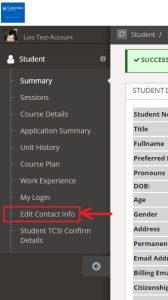
On the side-menu, click on ‘Edit Contact Info’
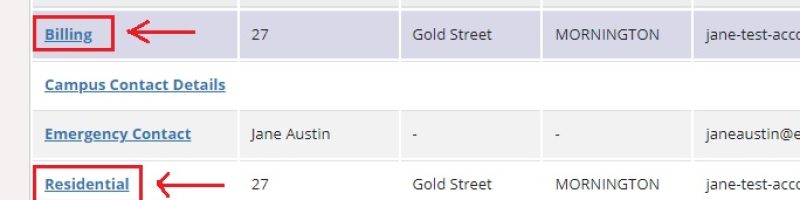
2. Choose which contact details you want to update.
Your billing contact information relates to your address and email in which we address financial information. It is also for your personal contact email.
If you are an International Student, this will be your home country (overseas) address.
Your residential contact information is your address of the primary address you are currently living in. It is also where your student email is kept (do not change this!).
If you are an International Student, this will be the address you are residing in Australia.
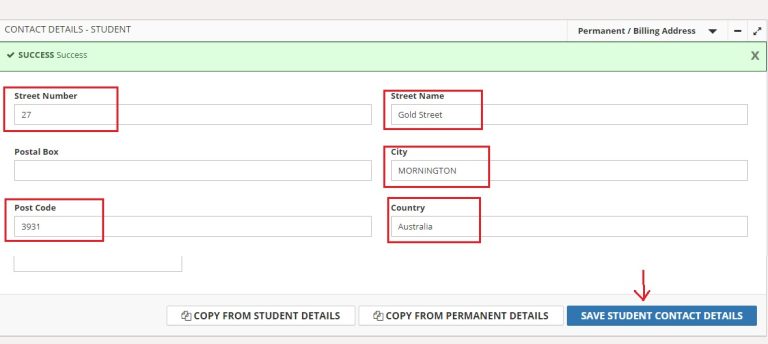
3. With the contact type selected, update the details in each box.
You will see boxes to upate your mobile number (or email for billing contact only).
Click ‘Save Student Contact Information’ to save your changes
Review and make sure it’s correct. Contact Student Services if you need any help (education@cairnmillar.edu.au).
Change of Name or Gender
Name changes are authorised by the registry office with sufficient proof of identity. Contact education@cairnmillar.edu.au for name change requests.
When changing your name, some of your name details are linked to your USI or CHESSN and/or your TFN and ATO records. We are only permitted to update details that match your USI records, and possible your TFN record with the ATO.
- Asking for a Legal Name Change:
Email legal evidence of identity to education@cairnmillar.edu.au (for example, a state issued marriage certificate or name-change certificate). Your legal name is what will be printed on transcripts and testamurs (degree certificates). Your legal name needs to be the name you use for tax purposes.
- Preferred Names (‘Nicknames’): If you have a preferred name that you go by, that is different to your legan name (see above), we can add that into your student record and your student email account for you. Please Email Student Services education@cairnmillar.edu.au and let us know what to change it to.
Nicknames/Preferred Names cannot be printed on official academic records, including Transcripts and Testamurs, as they are legal documents requiring a legal name.
Other changes and corrections:
- Change of Gender: Request by emailing Student Services (education@cairnmillar.edu.au) Your Gender needs to be the same as what is recorded with the Australian Tax Office (ATO). Our records must match ATO record, especially if you are using FEE-HELP.
- For Gender, three options are recognised by Australian Government Records Systems: F – female, M – male, or X – other or unspecified (e.g. non-binary or agender, also used by people who are intersex, but may also be appropriate for you if you are not sure or prefer not to say or are waiting on relevant documentation for the ATO) — see also: Pronouns in Canvas
- Honorific courtesy title (e.g. Ms, Mrs, Mr, Mx, Dr, Rev) email us at education@cairnmillar.edu.au and let us know what to change it to. Please supply legal evidence if you use a protected title (e.g. Dr or Rev) or military title (e.g. Sgt or Cpt). Ms, Mr, Mrs, Miss, Mx etc are preference titles and no evidence is needed.
- For other changes and corrections, contact education@cairnmillar.edu.au for further advice.
If your legal name or gender identifier change during your studies, don’t forget to also update these with the ATO and the USI Registrar. The name you study under needs to match your tax and USI records.
How to update your Demographic Information linked to your Student Record
You will be asked to confirm/re-confirm your demographic and statistical data once every few months. This data about you is for the Department of Education higher education reporting and is also used for HELP-loans (for those accessing FEE-HELP to pay for their tution fees).
You can also update your demographic and statistical data at anytime, following these steps:
1. Log into Paradigm.
2. On the side-menu select Student then Student TCSI Confirm Details
3. Fill in the fields/boxes as prompted
4. Save your changes
Update your USI
You will also now need to provide your USI if you have not already done so. See also: Unique Student Identifier (USI). If you need help adding your USI, contact Student Services (education@cairnmillar.edu.au)
Need Technical Help?
If you need help accessing or using Paradigm please email helpdesk@cairnmillar.edu.au for IT support.