Please note the following instructions are Paradigm only (cairnmillar.net.edu.au) If you are trying to reset your Cairnmillar account password, please refer to these instructions instead ()
How to reset the password to your Paradigm account
If you have forgotten your password:
If you can’t remember your Paradigm password, you can easily reset it.
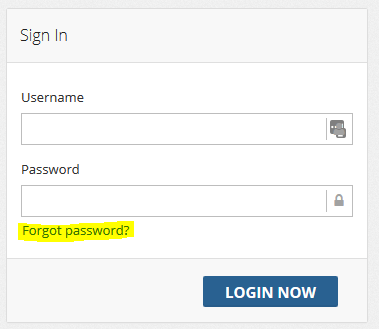
You will be presented with the Paradigm Sign-in Page. Underneath the Username and Password boxes, click on the ‘forgot password?‘ link. (As shown in the image below)
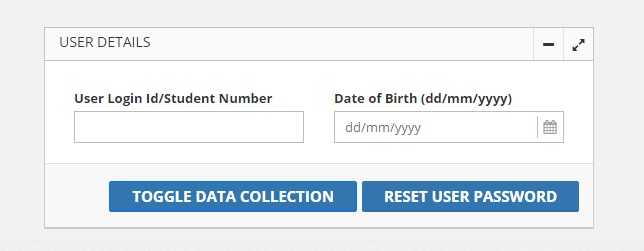
3. You will be redirected to the reset password page.
4. Enter your Student ID Number and your date of birth (as it is recorded in Paradigm) 5. Click Reset User Password. 6. You will receive an email from Paradigm to reset your password. This should be sent to your billing/personal email. Follow the instructions in the email carefully to reset your password.
If you know your password and just want to change it:
You can change your password in Paradigm at any time. You need to be logged into Paradigm to do this. If you can’t remember your password, see above.
To change your paradigm password, go to: https://cairnmillar.edu.net.au (Use a supported web browser: Chrome, Edge, Firefox)
Log into Paradigm
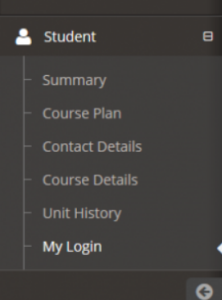
On the left hand side menu bar, click on ‘My Login’ (see below):
4. When the page loads, scroll down to ‘Edit User Login Details’ section 5. Complete the fields to update your password 6. Click the ‘Update Password’ Button
You can now log into Paradigm with your new password