Here is an in depth guide into how to reduce your video submission file size for upload to onedrive.
1. Navigate to the following link: https://handbrake.fr/
2. Click the download red download button as seen below.
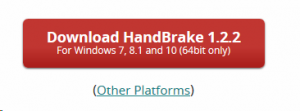
3. If on another platform that isn’t Windows click the other platforms link and find your appropriate operating system.
4. Once it has downloaded launch the application
5. Follow the prompts of the installation window that comes up.
6. Once Handbrake is installed launch the application.
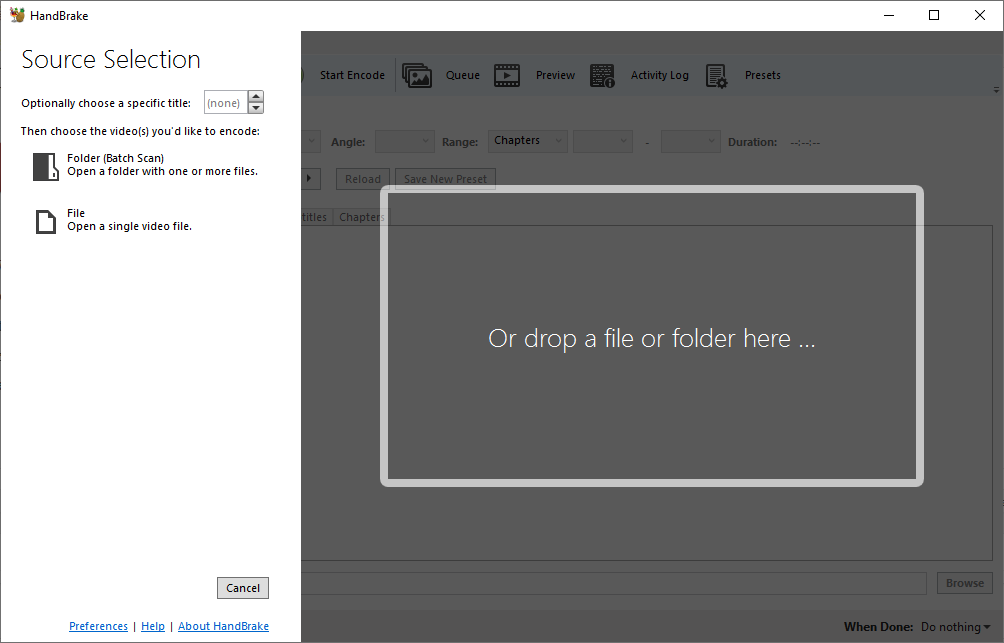
7. When Handbrake starts you will see a window popup that looks like below
Windows
or
Mac OS
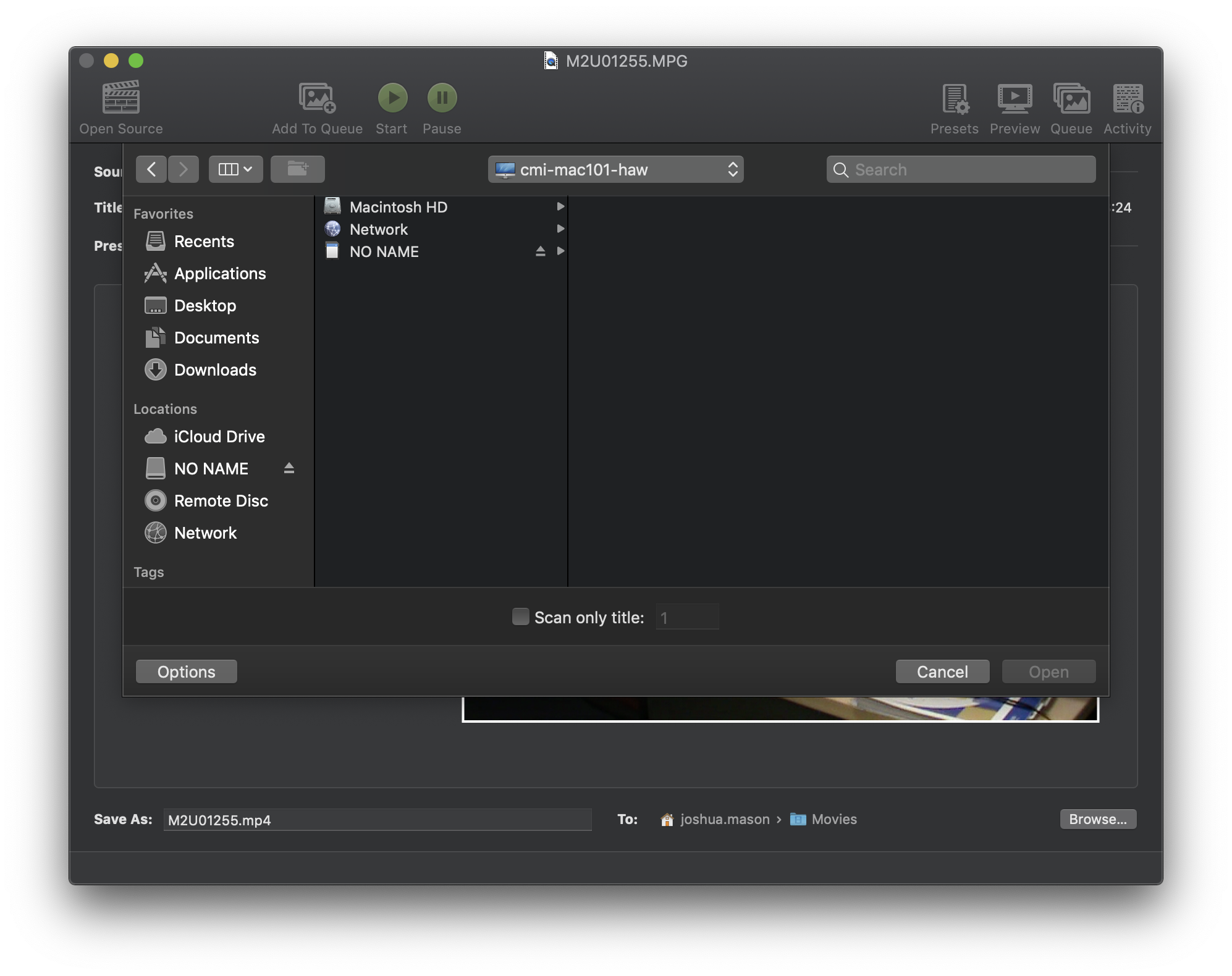
8. Drag your designated video file/s into the big drop a file or folder here box.
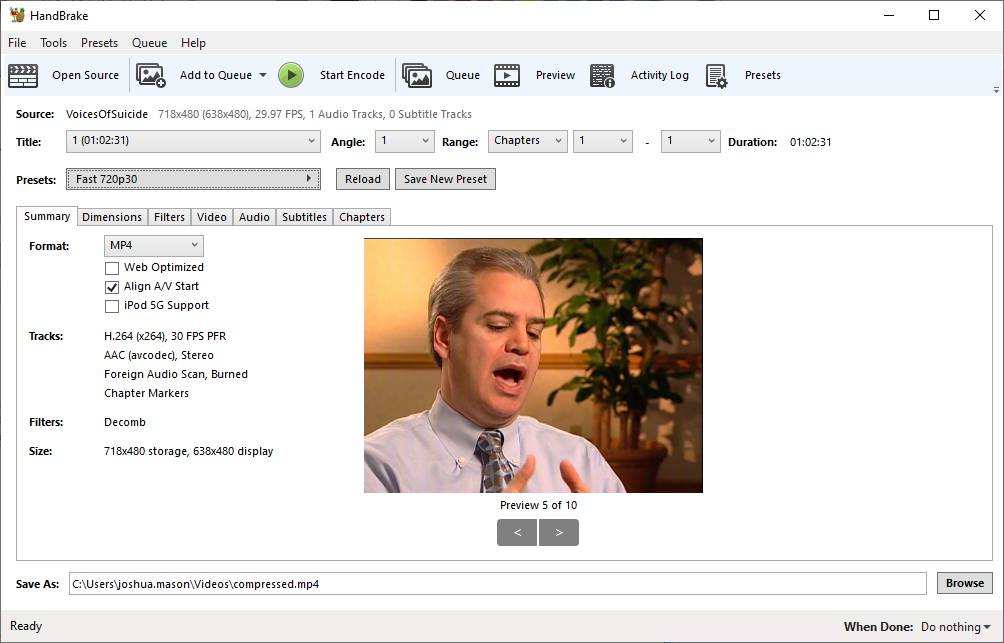
9. Once the video has been added you will see a page like follows.
Windows
or
Mac OS
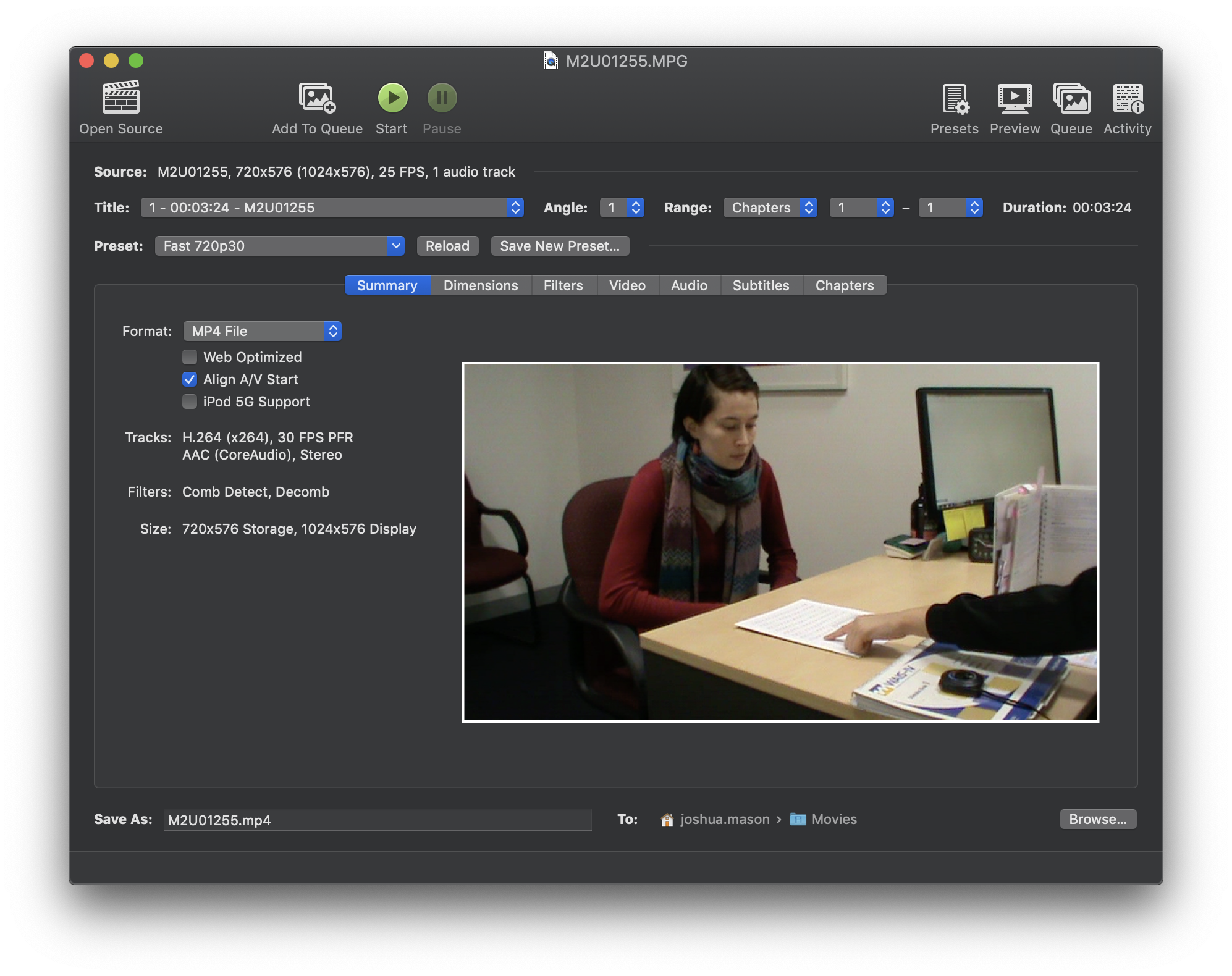
10. Our recommended preset is General > Fast 720p30 as the best preset option for compressing files.
11. Once you have selected the preset click the browse button at the bottom right of the application and find a location to store the new compressed file.
12. Then when ready click the green start encode button on the HandBrake application.
13. As soon as the bottom left of the application says queue finished the file has been compressed and you’re ready to upload your video submission!