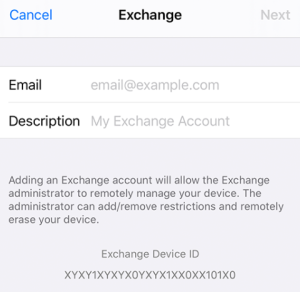
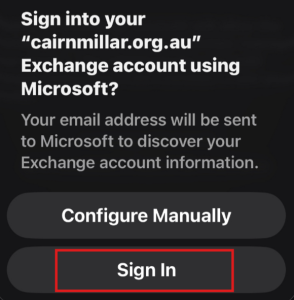
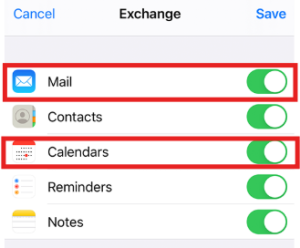
Add Cairnmillar email to Mail app on iOS This article will help you configure your iOS device (iPhone / iPad) to be able to access your Cairnmillar Email and Calendar using Apple’s Mail app.1. Add your Exchange accountOn iPhone or iPad, tap Settings > Mail > Add Account > Microsoft Exchange 2. Enter your email addressType your Cairnmillar student email into the Email field.Add a helpful description, e.g. Cairnmillar Microsoft Account.Then tap next. 3. Connect to the Exchange ServerAfter you’ve entered your email address, tap “Sign In” in the pop-up dialogue box.You will be taken to a webpage to sign into your Cairnmillar email account. 4. Sync your contentSelect the services that you want to sync with the Exchange Server by swiping the ON/OFF buttons next to each serviceYou can sync Mail, Contacts, Calendars, Reminders and Notes. At a minimum it is recommended to turn Mail and Calendar on.When you’ve finished, tap Save. You have now successfully added your Cairnmillar email account on your iOS device.Note: Depending on how much data is in the mailbox, it might take some time before your information is completely downloaded to your device.You can also refer to this article on Apple’s website for more helpIf you have issues please contact helpdesk@cairnmillar.org.au