Windows
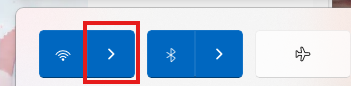
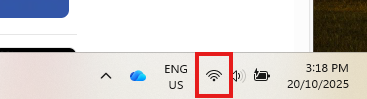
1. While on campus at Hawthorn, select the Wi-Fi icon from the taskbar:
2. Select the arrow symbol next to the Wi-Fi symbol.
3. Select the network called CMI_WiFi, check the box that says “Connect automatically” and click “Connect”.
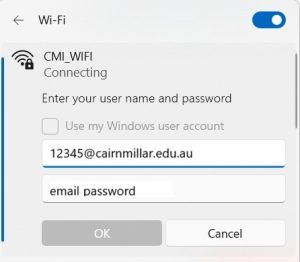
4. Enter your Cairnmillar student email address as the username and use the password to your Cairnmillar email address as the password. Then click “OK”
Android
1. Go to the Settings app on your device, then select Connections/Network.
Then select Wi-Fi and make sure it is turned on.
2. Tap “Wi-Fi” and look under “Available Networks” for a network called CMI_Wifi. Click on it.
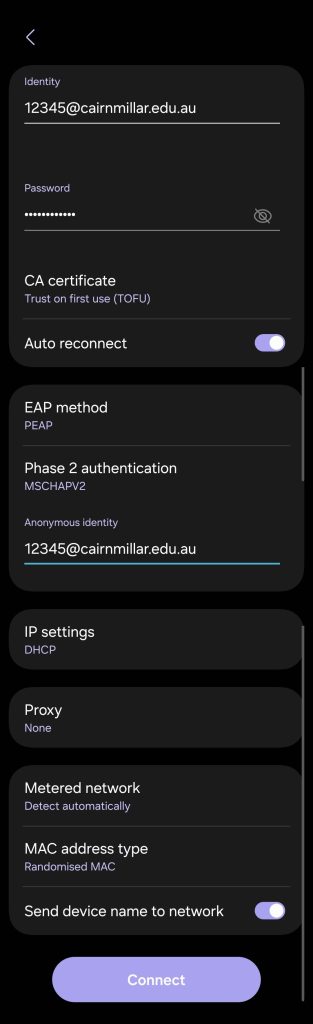
3. Fill in the fields as follows. Toggle “auto-reconnect” on to stay connected.
Note that different manufacturers will have these in different orders.
- Security: WPA/WPA2 Enterprise
- Identity: Cairnmillar email address
- Password: Cairnmillar email password
- CA Certificate: Trust on first use
- EAP method: PEAP
- Phase 2 Authentication: MSCHAPV2
- Anonymous Identifier: Your Cairnmillar email address (Do this last)
Example
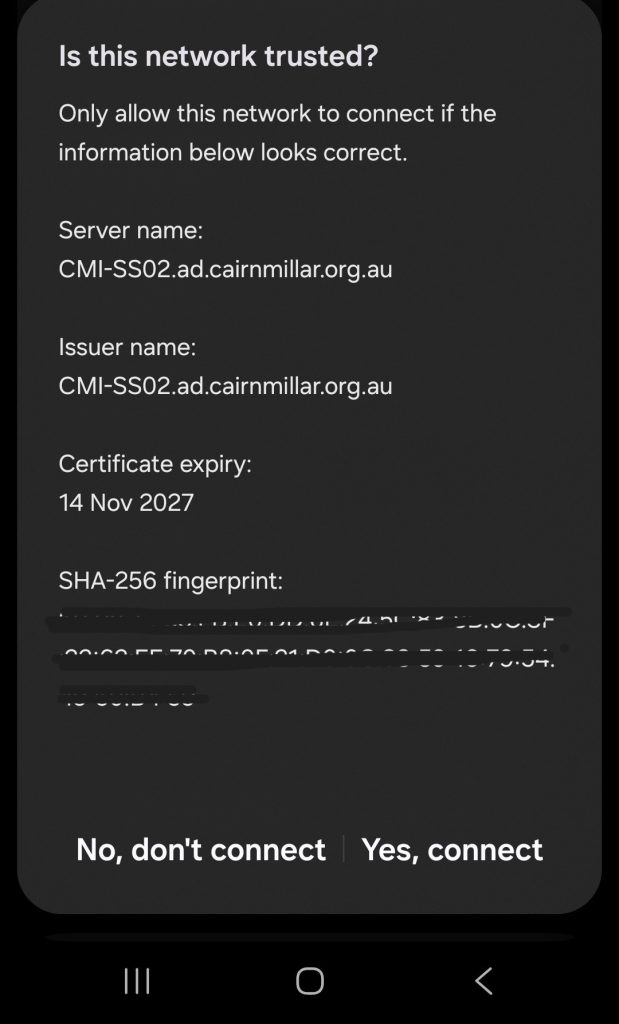
4. You may get a popup saying “Is this network trusted?”. Select “Yes, connect”
Note: If your phone is running Android 11 or less:
- The authentication method must be set to PEAP
- The CA Certificate option must be set to ‘Do Not Validate’
macOS
1. Select the Wi-Fi Symbol in the top bar.
2. Select the CMI Wi-Fi network.
3. Enter your Cairnmillar email address and password.
4. Select Continue.
5. A pop up may appear referring to the certificate. Select Continue.
iOS
1. Select Settings
2. Select Wi-Fi
3. Select the CMI Wi-Fi
4. Enter your Cairnmillar email address and password.
5. Select if you want to remember this Wi-Fi profile.
6. Select Trust in the top right of the certificate screen.