From time to time it may be necessary for students to book a meeting room at the Hawthorn East campus. Please use the following process to get this done.
Sign in with your Cairnmillar email address and your password.
On the left hand side menu there is a calendar icon, click on it.
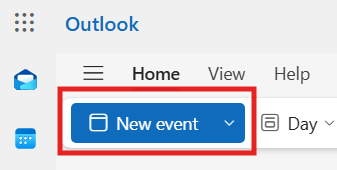
4. Now you need to click on “New event” on the top left hand side.
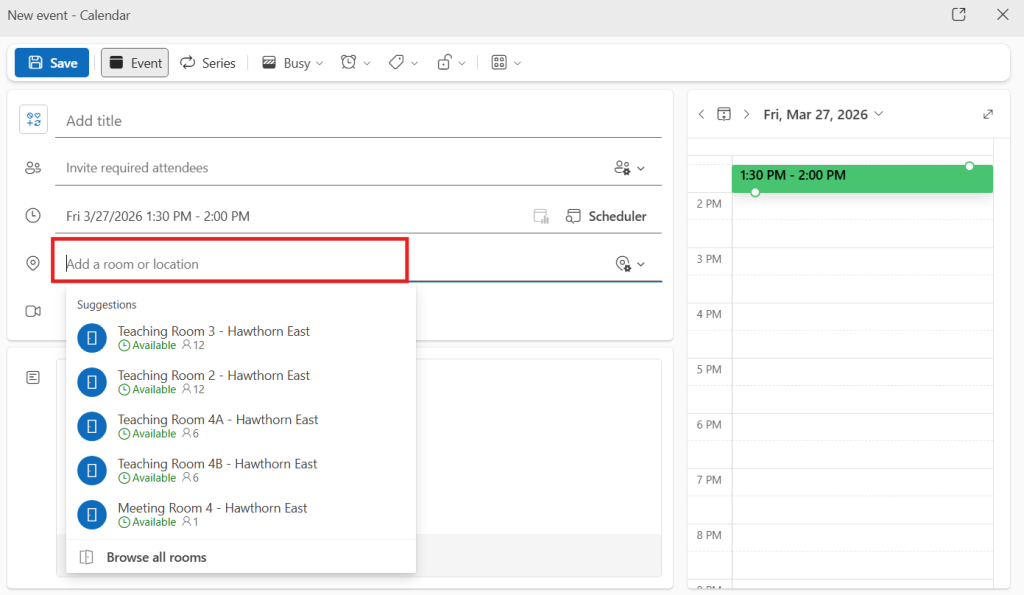
5. You will arrive at a page as seen to the right.
6. Fill out the relevant information such as title, attendees, time etc.
7. In the location field, type in the room you would like to book (e.g. Meeting Room 1 or 2). Ignore the status that says if a room is available or unavailable.
8. Confirm that everything is correctly filled out and then click Send.
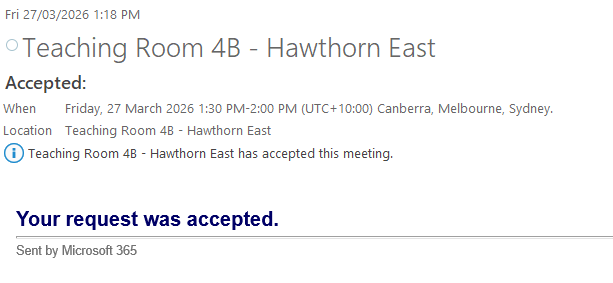
9. You will receive a confirmation email about whether your request was accepted or denied based on Room Availability. See the “accepted” email to the right –>