In order to check your Requests, you will need to access your Library card. For further information on Accessing your Library Card, please refer to the Library Guide • Accessing your Library Card
Requests
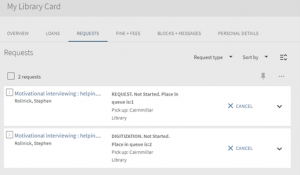
Once signed into your Library card – click on Requests.
Here you will see any active Requests you currently have.
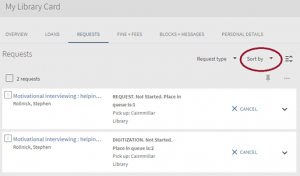
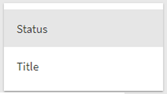
You may sort them by clicking on the Sort By drop down arrow
And then check your request using the below options:
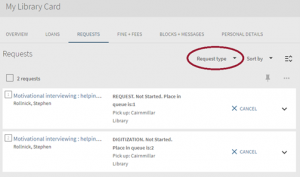
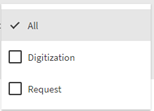
Clicking on the Request Type dropdown arrow will allow you to view your physical item requests or digitised requests
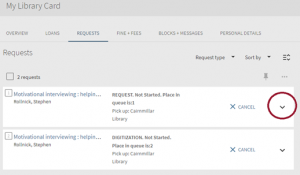
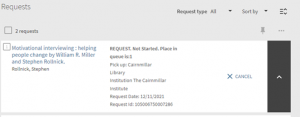
Clicking the dropdown arrow next to the Request will allow you see the status of the request
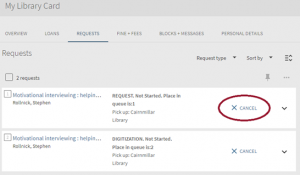
You may cancel a request at any time by clicking on the Cancel button next to the Request.
You will receive the following prompt:
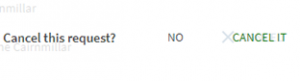
Clicking CANCEL IT will cancel the Request.
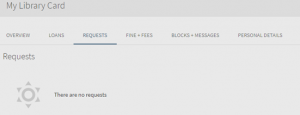
If there are no requests on your card you will see the below :
The Cairnmillar Institute Library Guide Checking Requests was created 13 December 2021 and is accurate as at 18 January 2022