There are two ways you can check your unit enrolments for your course:
View your Unit Enrolment History – Will only show you currently enrolled units, the unit start date and the unit census date (it will not show you any units you have not enrolled in)
View your Course Plan – Will give you visual plan of all units you need to complete for your course, including: what you have enrolled in, what you have not yet enrolled in and what units are prerequisites
View your Unit Enrolment History
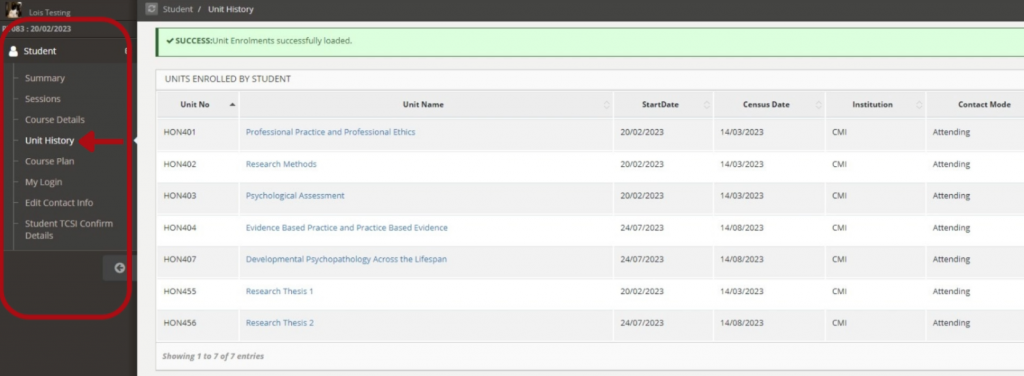
In Paradigm, click on ‘Unit History’ on the left-hand side menu bar.
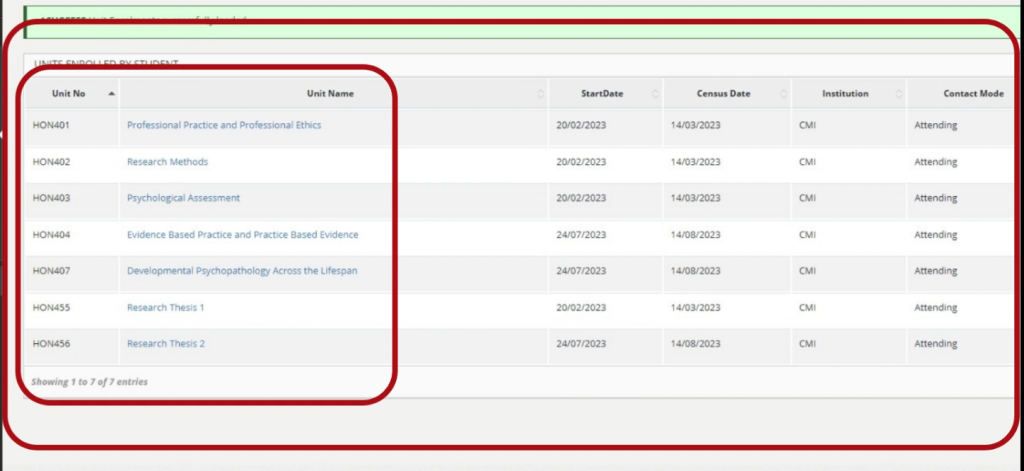
You can see the Unit Code and the Unit Name (Unit Title) in the first two columns
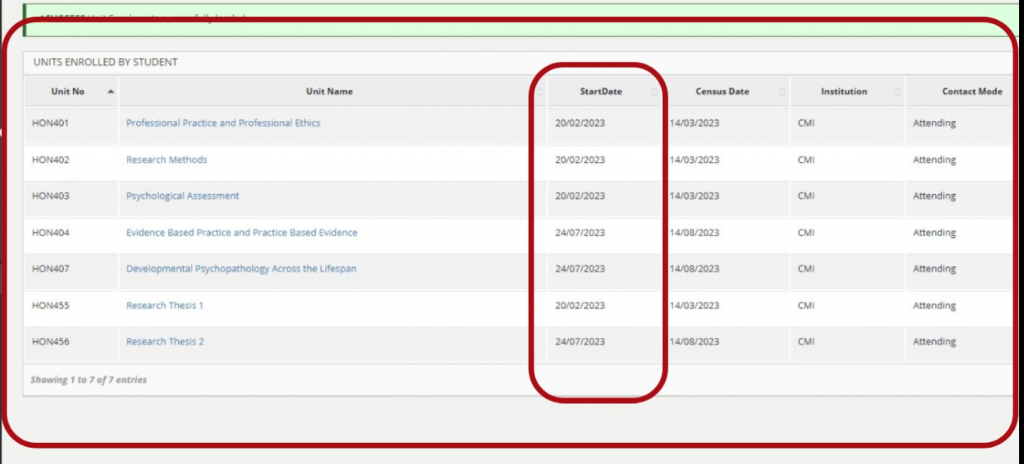
You can see the Start Date for each unit. The Start Date reflects what semester the unit will be undertaken.
In this example, you can see that the unit titled HON401 – Professional Practice and Professional Ethics is a Semester 1, 2023 unit, because the start date of the unit is 20/02/2023, which is the start date of Semester 1 of that year.
On the other hand, you can see that the unit titled HON404 – Evidence Based Practice is a Semester 2, 2023 unit, because the start date of the unit is 24/07/2023, which is the start date of Semester 2 of that year.
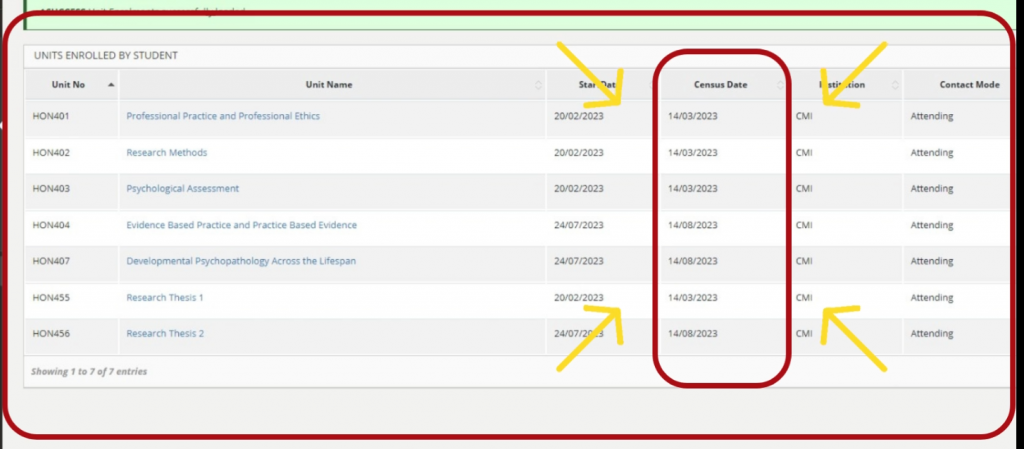
You can see the Census Date for each unit.
The Census Date is very important.
It is your responsibility to be aware of the census dates for the units you are enrolled in. See: What is the Census Date
View Your Course Plan
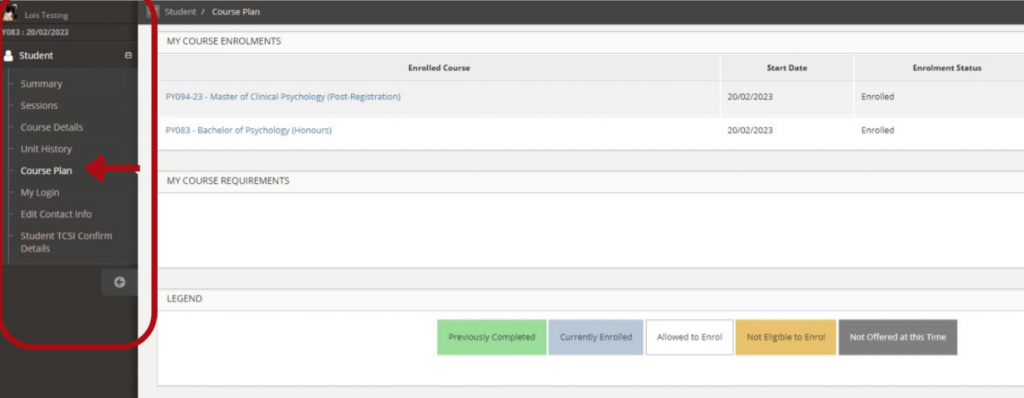
In Paradigm, click on ‘Course Plan’ on the left-hand side menu bar.
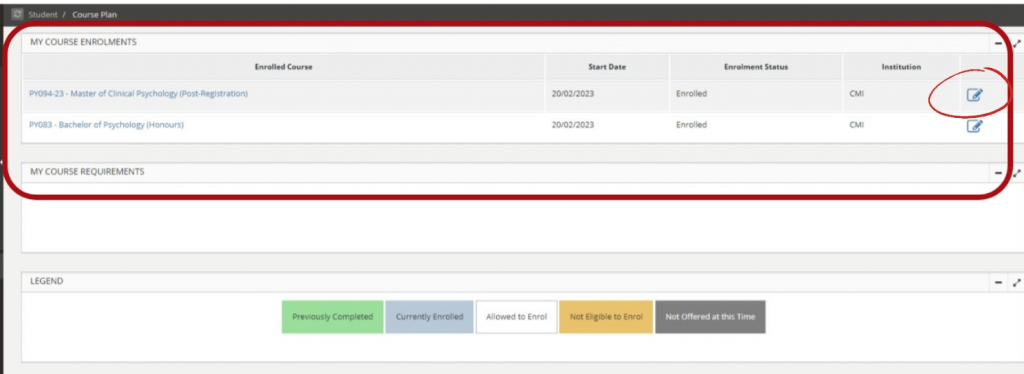
Some students may have completed multiple courses at Cairnmillar in the past. To view the correct course plan for the course, click on the pencil edit button to bring up the correct course plan.
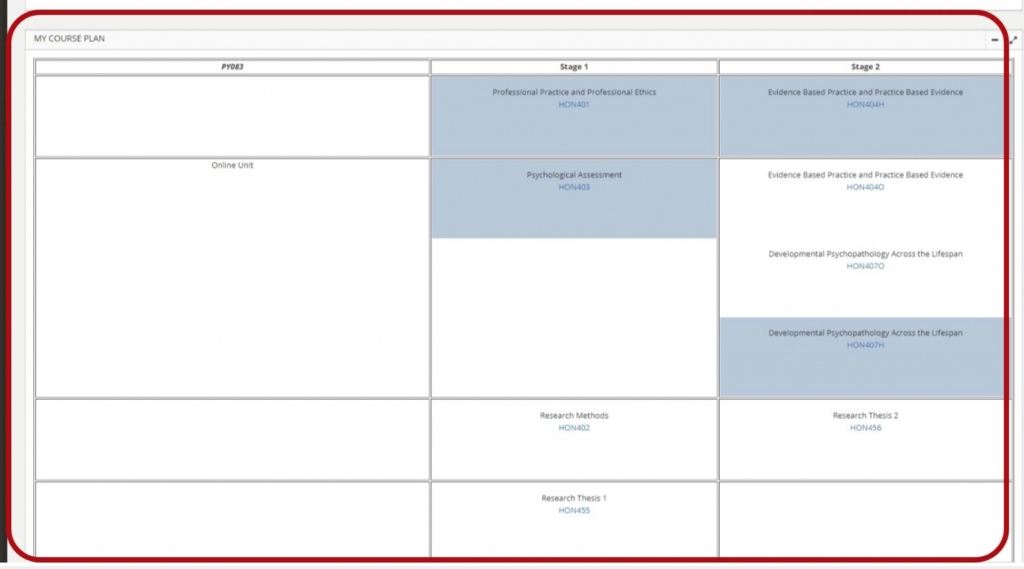
This is an example of a Course Plan. Your real Course Plan will look differently because each course is different.
The Course Plan will show you all the units you will undertake in your course as per your Course Handbook (which you can find here on myCMI).
In this example, the blue boxes tell us that we are currently enrolled in these units. Specifically, it means that we are still undertaking the unit and have not yet completed it.
The white boxes tell us that we have not yet enrolled in these units. We will eventually enrol into these when we are ready to undertake them, as per the course structure in our Course Handbook
When the boxes are green, it tells us we have completed the unit OR we have been granted RPL/Credit Transfer for the unit.
When the boxes are yellow, it tells us we cannot yet enrol because the units requires completion of the prerequisite unit first. Once the prerequisite unit has been completed, the boxes will turn white ready for enrolment.
When the boxes are grey, it tells us that the unit is not available to enrolled in.
Course Plan Colour Legend
Your successfully completed units will be coloured green
Units you are unable to enrol in (due to not meeting pre-requisites) will be coloured yellow
Units you are able to enrol in will be white
Units that are not yet scheduled i.e. not offered for this teaching period, will be coloured grey
Unit you are currently enrolled in will be coloured blue