

To use Immersive Reader in OneNote, please try the following:
- Open OneNote on your laptop or similar device. Note that Immersive Reader does not work on Android devices
- Add a page to your notebook. For testing, just add a page to your QuickNotes.
- Copy some text, say the text on this page.
- Paste it into the new page on OneNote.
- From the top menu in OneNote, select View.
- From the Menu bar, select Immersive Reader
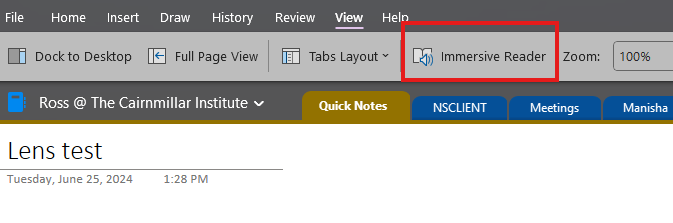
- Press the Play button!
While you have the file open, check out some of the other features by clicking on the options at the top right of the Immersive Reader. You can change the colours to make it easier to read, change the font, and change the font size. You can even do things like highlighting the different syntax such as highlighting all the verbs or all the nouns.
If you want to take a photo of a document or the page of a book, with OneNote open on your phone, just click the camera icon on the bottom bar when you are on the Notebook page that shows all the pages of a NoteBook. Make sure the top option is set to Home as shown below: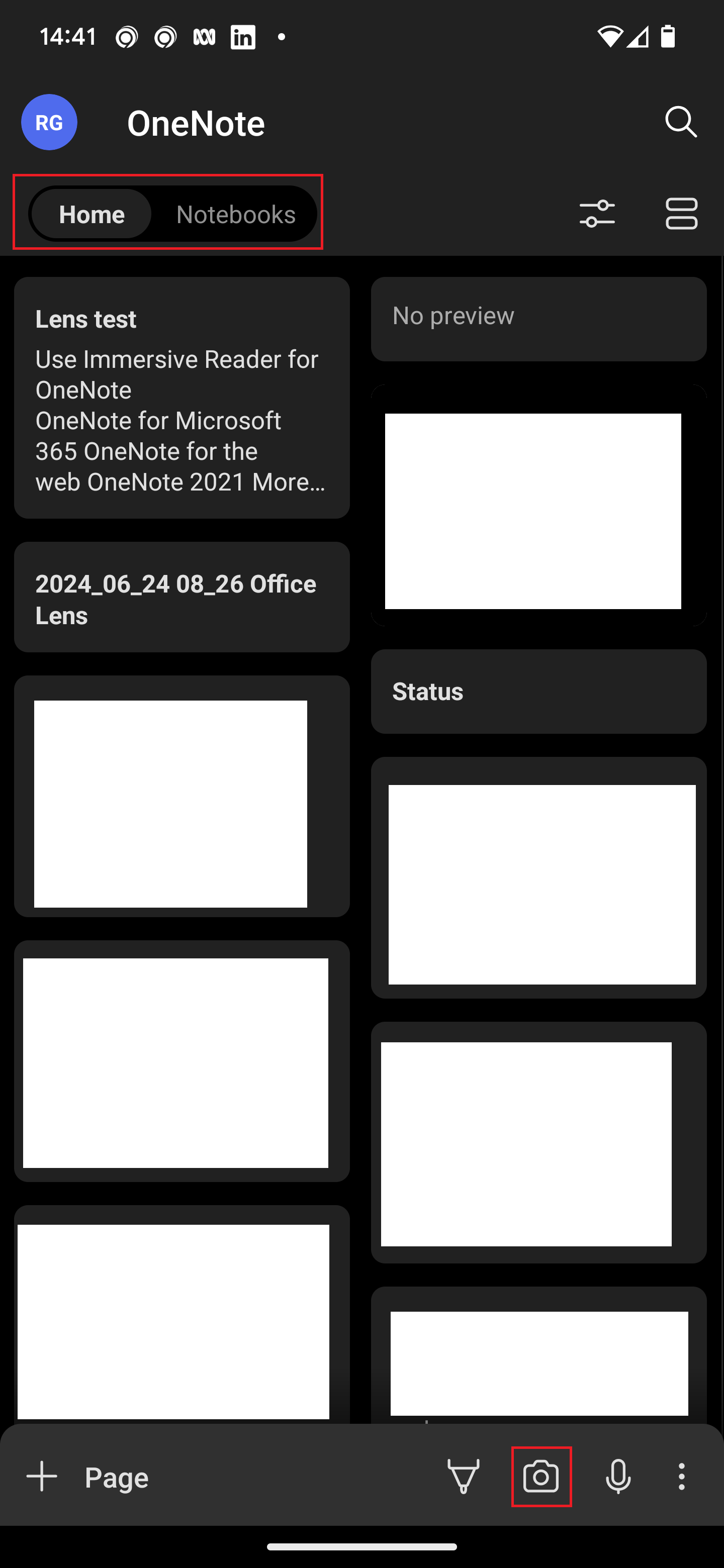
Save the photo and confirm it. It is then saved as a new page in your notebook. The only additional step required to get Immersive Reader to read from your image is you need to right-click the image in OneNote on your laptop, then select the ‘Mark Text in Image as Searchable’, then select ‘English’.
Once you have changed this flag, go up and select the Immersive Reader option in the tool bar.