IMPORTANT:
Before connecting to the TSERVER from offsite you will need to download and configure the VPN client called FortiClient. Once installed and configured you launch FortiClient to connect to the CMI network and then you are able to connect to the TSERVER following these instructions. FortiCient is only required if you are offsite and not connected to the local CMI network. If you are on the CMI network then you can skip the instructions on how to download, install and configure the VPN client.
Download, install and configure VPN client
Go to https://vpn.cairnmillar.org.au:10443 and log in using your CMI credentials
Click on relevant Forticlient link for your computer in the FortiClient Download section
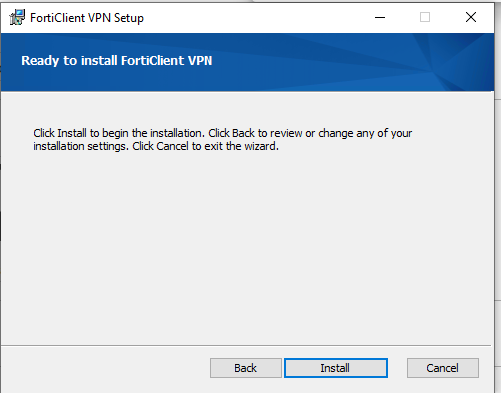
Run the downloaded program and install
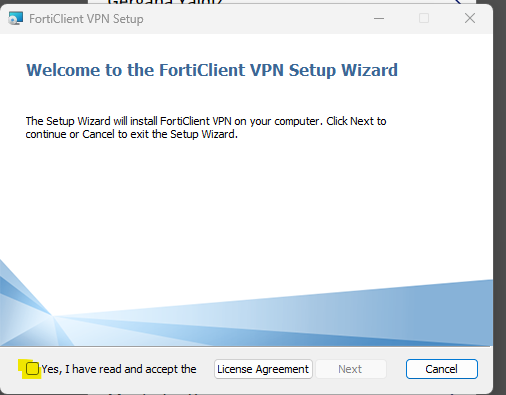
Once installed, run FortiClient from shortcut on your desktop. You should see something like below appear on your desktop.
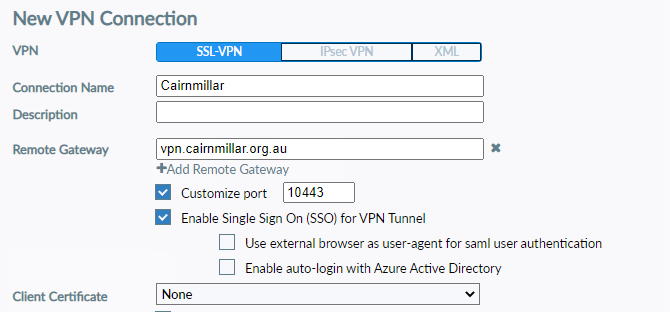
Enter the details as shown
Connection Name: Cairnmillar VPN
Description: Can be left blank
Remote Gateway: vpn.cairnmillar.org.au
Tick Customize Port and enter 10443
Check the ‘Enable Single Sign On (SSO) for VPN Tunnel’ option
Tick Do not Warn Invalid Server Certificate
Click Apply and then Close
Once back at the main screen, you will see the VPN connection that you just created. Now enter your CMI username and password, after a short while (around 30 seconds) you will be connected to the VPN and a message will appear in the bottom right of your screen.
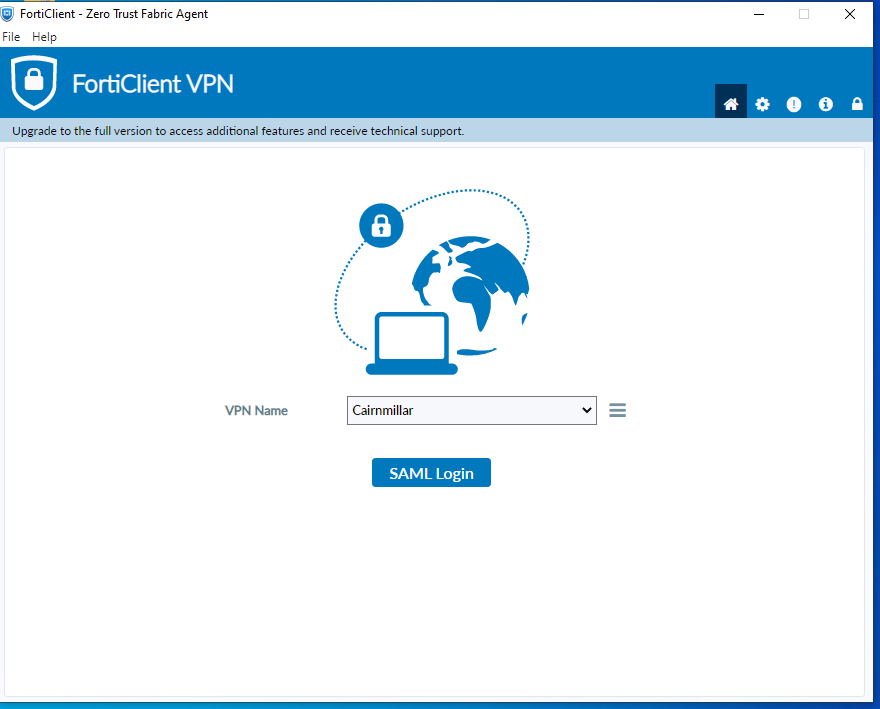
You will need to enter your student email address and password to authenticate. You will also be prompted for you Microsoft MFA authentication.
Please note that sometimes the login may fail with no error message (returns you back to the login screen). If this does happen please try again until successful.
Once you have successfully connected to the VPN you can now open up the Remote Desktop Application and connect to tserver.cairnmillar.org.au using your CMI login details
Connecting to the TSERVER – Windows 10 Instructions
From the Start menu, go to All Programs > Accessories > Remote Desktop Connection or you can search for this application from your Start menu. You should see the following
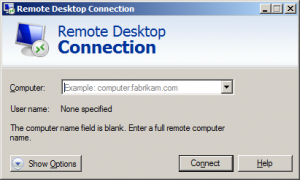
You need to enter the following information,
Computer: tserver2.cairnmillar.org.au
Then click on the Connect button, you will then be asked for your username and password. This is the same username and password that you use when you log into a PC when onsite at Cairnmillar. Please note that you need to enter your username in the following format CMI\firstname.lastname or student-id
If all the above information is correct you will be logged into the TSERVER as if you had logged into a PC locally at Cairnmillar. You will have access to all the shared resources that you would expect.
Once you have finished you can log off as you normally do.