Backing up
Note: You can only backup and restore on the same device type: accounts backed up using an iOS device cannot be restored on an Android device.
iOS
To back up your accounts on an iOS device you need to enable iCloud to use Authenticator and then enable backup in Authenticator.
Android
To back up your one-time password accounts on an Android device:
-
Open Microsoft Authenticator

-
Tap
then Settings. -
Turn on the
Cloud Backup toggle. -
Select a personal Microsoft account where the backup will be stored.
Do not backup to your Cairnmillar (or any other work/school account) account. This is because you will end up in an infinite loop of trying to login to Cairnmillar account to restore the backup, but needing an authenticator code to do so, which is saved in the backup etc.Note
If you saved the backup to the wrong account, or need to change the recovery account, delete the existing backup and make a new one.
-
Tap OK
Restoring
Android
Important
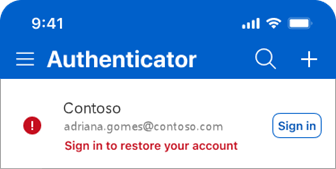
Select either Restore from backup or Begin recovery links before signing in recovery.
If you have already signed in without restoring, sign out before proceeding with account recovery (see below: removing all accounts from Microsoft authenticator)
- On your mobile device, open Authenticator, and select Restore from backup.
- Sign in to your recovery account using the personal Microsoft account you used during the backup process. Your account credentials will be recovered to the new device.
Only complete this step if you signed back into Microsoft authenticator without restoring the backup:
Removing all accounts from Microsoft Authenticator
The easiest way to start again with Microsoft Authenticator is to uninstall (not just delete) the app, and then reinstall it from the App/Google Play store.
If this does not work, you can also try the following:
iOS
-
Open your device’s Settings app.
-
Select General then Storage.
-
Select Authenticator in your app list.
-
Tap on Offload App.
Important
There is no undo. All accounts will be removed, and you will not be able to use your device to verify sign-in.
Android
-
Open your device’s Settings app and select Apps.
-
Select Authenticator in your app list.
-
Select Storage or Storage & cache.
-
Tap Clear data then OK.
Important
There is no undo. All accounts will be removed, and you will not be able to use your device to verify sign-in.
