If you would like to book a room for a study group, research interviews, test practice, or other education related purposes, you can book them through your student email account in Outlook (see Booking rooms with Outlook)
For assistance making a booking, contact helpdesk@cairnmillar.org.au for further instructions. See also Outlook Support.
Meeting Rooms 1-9
| Meeting Room | Location | Capacity | Access |
| 1,2 | Near Student Hub Kitchen | 1-3 people | Students can book these via Outlook (see Booking rooms with Outlook) |
| 3,4,5 | Near Staff Kitchen | 1-2 people | Staff bookings only – must have staff member with you as requires swipe card access. E.g. use for meeting with a coordinator or supervisor. |
| 7,8 | Staff area | 1-4 people | Staff bookings only – must have staff member with you as requires swipe card access. E.g. use for meeting with a coordinator, supervisor or project group. |
| 9 | Executive meeting room with couches. | 1-10 people | Staff bookings only – bookings only approved in specific circumstances. |
Please note that Teaching Rooms 4A and 4B (rooms in the foyer with glass doors) can only be booked by staff.
Supervision Rooms 10-14
These are the rooms upstairs between Teaching Room 6 and Teaching Room 7.
These can be booked either:
- Using Outlook (see Booking rooms with Outlook), or
- By using the Joan tablets outside these rooms.
Joan Tablets
Joan is our digital room booking assistant for the supervision rooms on level 1 at our Hawthorn East office.
Joan can show you when a room is booked or vacant, can help you book a room for a meeting now, or book a room for a meeting later.
Joan will read the room calendar and will update it in real time. All to assist in making sure that the room you want is available to you when you want it.
Where is Joan?
Joan is a device beside the door for each of the supervision rooms.
Just tap the time that you want it to start. You will then be prompted for when you want it to finish.
Again, just tap the time you want to finish. Then, you just tap the tick to save it.
How do I book it for right now?
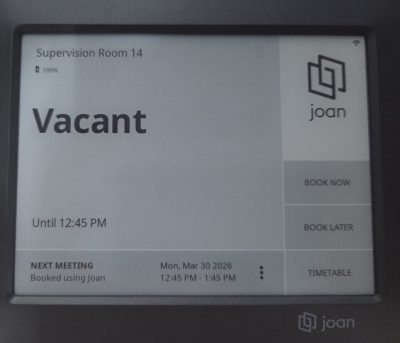
If a room is showing as Vacant, you can book it for right now by tapping the “Book now” option. When you do, it will show it is occupied and will block a 1-hour session for you.
This is the one for Supervision Room 14.
As you can see, the room is currently Vacant, though there is one meeting booked for it at 12:45pm.
How do I book it for later?
Booking a session for later can be done if the room is Vacant or Occupied.
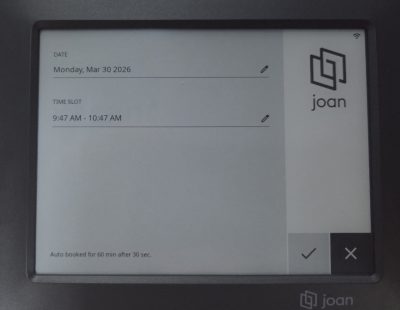
- Just tap the Meet Later option.
- You will then get asked to pick the start time and the end time.
The layout for the selection looks like the image on the right –> - Click the pencil icon to pick the time and date of your meeting.
- Click the tick when finished.
Can I still book a room through Outlook?
Yes, you can. This has not changed. Joan monitors the calendar for the room the device is attached to and will include all Outlook bookings in the timetable and show you when a booking is active.
Other Rooms and Advice
If you need advice about the rooms such as capacity or location, or larger class room options, or to book a room not available for student bookings please contact Reception on reception@cairnmillar.edu.au at least one week in advance to find out if the space you want is available.
Remember to include the date, time, number of participants and purpose of your booking when you contact them.