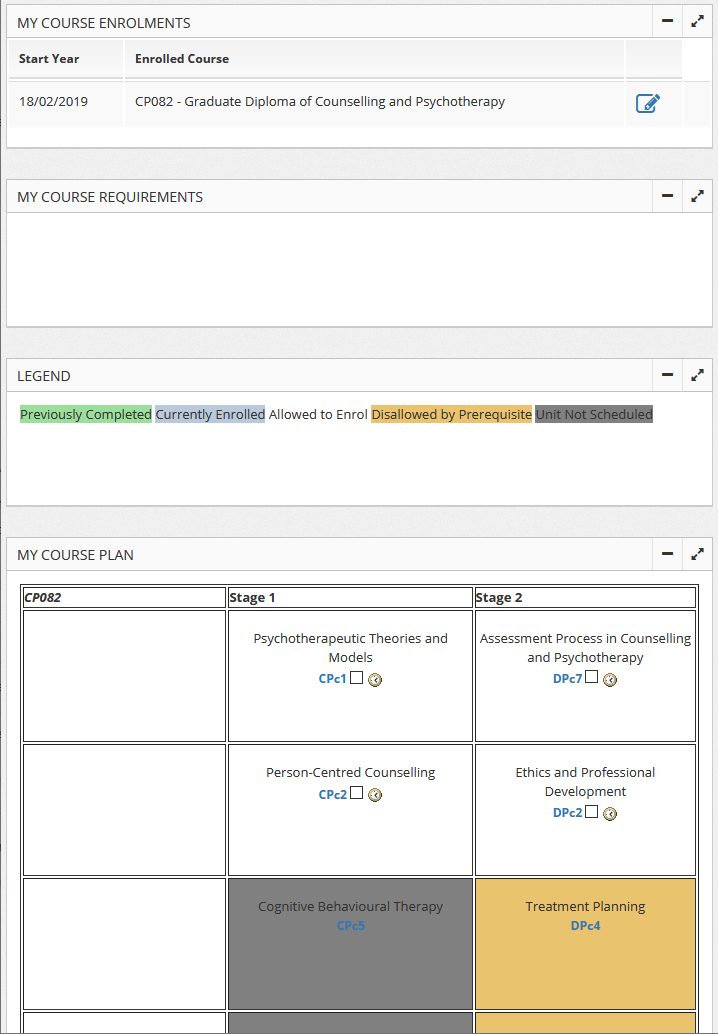
You course planners can be found in the Course Plan in Paradigm. These detail all the units you need to complete and also allow you to enrol in your current units and check your status for completed units.
To access your Course Plan you need to Login to Paradigm (ensure that you are using a supported browser such as Chrome, Firefox or Edge) then navigate to Student then Course Plan using the grey menu on the left of the screen.
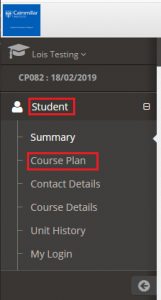
The Course Plan will default to showing you your currently Enrolled program of study.
All of the units you need to undertake in your course are listed in your Course Plan as well as your current status in those units.
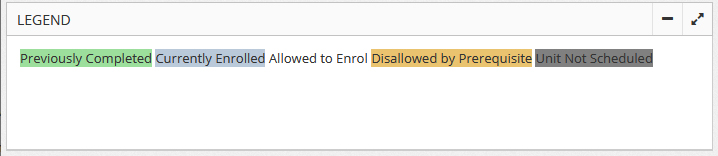
There is a legend which tells you what each colour means, and if you hover your mouse over the unit code a pop-up will tell you more about the unit and your status for that subject.
Change Current Course Plan
In some rare cases you may have more than one enrolled course of study (not normal but can happen if you are still finishing a Grad Dip placement late in the C&P suite, or for people moving from MPP to MPPP). If you have more than one Course Plan, you can switch Course Plan by clicking the blue edit icon  next to the Course you want in the My Course Enrolments section at the top of the Course Plan screen.
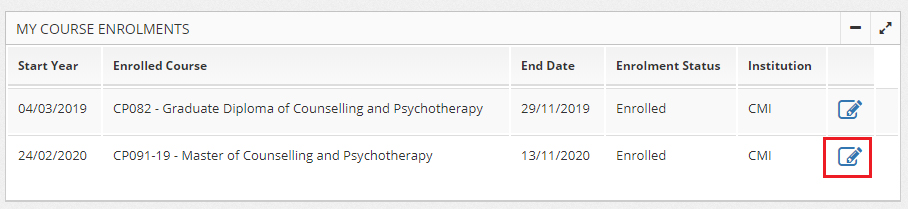
If you do not have the Course Plan you want to access you may need to request a Course Transfer (MPP to MPP or Nested C&P) or Apply for a new program first.
More Information and Help
See the unit enrolment instructions for more information on adding enrolments and using your Course Plan.
See also: Checking your course enrolments (program) and Checking your unit enrolments (subjects).
If you need help with choosing your subjects or understanding your Course Plan contact your Course Coordinators.
If you need help using or accessing Paradigm, contact IT Support at helpdesk@cairnmillar.org.au
Example Course Plan